
Fabric Desktop by KratosBI user guide
Fabric Desktop by KratosBI runs your data work on your own PC and keeps the results in Microsoft Fabric's OneLake. It looks and works like Fabric, so most pages will feel familiar. This guide walks through every page: what it is for, how to use it, and what happens behind it.
The app's Learn more links open the sections of this page. Two areas have their own, longer guides:
- Notebooks and SQL: writing and running notebooks on your PC, Fabric code that works here, publishing, Run in Fabric and schedules, and the SQL query tab.
- Side by side: running a notebook on this PC and in Fabric one after the other, comparing time and results, and the TPC-H benchmark.
- How a proof works: Prove this notebook: both runs from the same pinned inputs with sandboxed writes, the differences, the scorecard and the receipt.
- Metadata framework: building and running medallion layers from config, step by step, with a reference for every setting.
New here? Install first (install.md). Setting it up for others? Start with Configure Azure and Fabric.
Where things run. Unless a button says Fabric, work runs on your PC and starts no Fabric job (its OneLake reads and writes still use capacity): notebooks, SQL queries, metadata runs in an environment set to This PC, profiling, comparing and testing. Buttons that say Fabric (Run in Fabric, Fabric schedules, Optimize in Test or Prod, semantic models, environments set to Runs on: Fabric) use your workspace's capacity.
The window#
| Part | Where | What it does |
|---|---|---|
| Left rail | Left edge | The pages: Home, Create, Workspaces, OneLake, Data mesh, Platform (Preview), Fabric, Monitor, and Settings at the bottom. Below them are the items you opened recently (a workspace, a SQL query, a notebook), each with an × to close it. Closing a notebook saves it first. |
| Search box | Top bar | Opens the command bar (below). When you pick Show only items matching ..., the current page is filtered by that text until you clear the box. |
| Environment picker | Top bar, on Data mesh pages only | Dev, Test or Prod. Every Data mesh page shows the environment picked here. The pill next to it says where that environment runs, for example "Runs in Fabric · Sales - Test"; click it to change that. |
| Bell | Top right | The activity tray (below). The number on it counts what is running plus new problems; it turns red when there's a problem you haven't seen. |
| Account circle | Top right | Your initial, or ? when signed out. Opens the account menu. |
Command bar (Ctrl+K)#
Press Ctrl+K anywhere, or click the search box. Type a few letters to find:
- Pages, such as Monitor or Settings.
- Actions, such as New notebook, New lakehouse, Run all entities, Data mesh: Surrogate keys, OneLake shortcuts, Report a problem, What's new or Sign out.
- Notebooks on this PC, workspaces you can open, and entities in your metadata project.
Use the arrow keys and Enter, or click. Esc closes it. Actions for preview features only show when preview features are on.
Using the keyboard#
- Tab moves through the window, with a ring around whatever has focus. The first Tab offers Skip to content, which jumps past the top bar and the rail.
- In a dialog, Tab stays inside it, and Esc closes it when clicking outside would. Focus then goes back to what you were on.
- A menu (your account, Publish options, Git) opens on its first item. The Up and Down arrows move through it, Enter picks, and Esc closes it and goes back to its button.
- Rows and cards that open something when clicked, such as a notebook, lakehouse, run or workload, can be reached with Tab and opened with Enter or Space.
- In a row of tabs, Left and Right move to the next tab, and Home and End to the first and last. Some pages' tabs don't support this yet.
- If Windows is set to show fewer animations (Settings > Accessibility > Visual effects > Animation effects off), the app doesn't animate either.
The bell: activity#
The bell keeps a list of what happened in this app on this PC:
- Runs that are still going, including ones in Fabric. It follows a Fabric run until it ends, even if you go to another page, and tells you how it ended.
- Results you can reopen, such as the result of a Run all.
- Every error, explained in a sentence ("Your sign-in expired", "You don't have permission for that in this workspace"), with the technical text folded under Details. When you report a problem, the most recent errors are included for you.
Account menu#
Click your initial at the top right:
| Item | What it does |
|---|---|
| Signed in as ... | Who you are signed in as |
| Settings | Opens Settings |
| Help and user guide | Opens this guide |
| Report a problem | See Report a problem |
| What's new | The release notes of the build you're running, and everything new in the 30 days before it |
| Build and channel | Which build you're on, and Stable or Preview |
| Sign out | Forgets your sign-in on this PC, in the app and in the embedded Fabric pages. Notebooks and settings stay. |
Get started#
- Sign in with your work account, the same one you use for Fabric. Windows often signs you in with no prompt. There's no app ID to ask anyone for.
- Open a lakehouse from OneLake or Workspaces to browse its tables and files, or query them with SQL.
- Create a notebook from Create. Cells run on this PC, not on your Fabric capacity.
- Set up a metadata project (Data mesh in the left rail) when you want Fabric Desktop by KratosBI to build and run your medallion layers for you.
Home shows a Get started list with these steps until you have a metadata project. Each step has a Start button and gets a tick when done. Hide removes the list.
Home#
Home answers "what happened since I was last here". From the top:
| Section | What it shows |
|---|---|
| Summary line | "Nothing needs your attention", or how many things do, and how many are running. When run history, an environment or Fabric jobs couldn't be read, it says "Nothing found that needs your attention" and names what it couldn't check, since unknown isn't the same as fine. |
| Ready to work | Whether this PC can do real work yet, with a fix for anything that's missing. See Ready to work. |
| Needs your attention | Tables whose latest run failed or is waiting for a decision, in any environment, with Open entity and Open run. Fabric runs that failed in the last day, with Open in Fabric. Tables that are late for their freshness promise. |
| Your workloads (Preview) | What you own, by health, with the ones that need attention and how many workloads have no owner. See Workloads. |
| Running now | What this app is running, here or in Fabric. |
| Coming up | The next scheduled runs, on this PC and in Fabric. All schedules opens Monitor > Schedules. |
| Data mesh (Preview) | A map of the whole mesh: each domain and subdomain, the projects in it, the data products they publish (colored by who may read them) and arrows from each product to the projects that read it. Your open project is outlined; click it to open Data mesh > Domains. The section folds with its arrow. |
| Environments | Dev, Test and Prod: where each runs, and "All green", "2 failed", "Running" or "Never run". Click one to see its runs. Before you have a metadata project, this space shows Get started instead. |
| Start something | New notebook, New lakehouse, OneLake catalog. |
| Recent notebooks | Your last eight notebooks. Click to open. The section folds with its arrow. |
| Estate X-ray (Preview) | See below. |
Ready to work#
A short list that says whether this PC can do real work yet. Each check only reads, and none opens a sign-in window. The How this works panel beside the list says what it reads, the one thing it can write and where results are kept.
| Check | Ready when | If not |
|---|---|---|
| Local engine | The engine starts on this PC | You wouldn't see Home; the startup window explains |
| Signed in | Your sign-in is saved and still works | Sign in |
| Fabric answers | Fabric lists your workspaces | The error, and Check again. No workspaces: ask to be added to one |
| A workspace on a capacity | At least one of your workspaces is on a running Fabric capacity | You can't create lakehouses yet; notebooks and SQL on this PC still work. Plan workspaces and capacity |
| Your organization's settings | Nothing in your organization's policy file was ignored | Open Settings shows what was ignored |
| Writing to OneLake | Test a write worked in the last 7 days | Only checked when you ask (below) |
Test a write is the one check that writes. You pick a workspace and lakehouse. Workspaces whose name says Prod aren't offered, and the engine refuses them too. It writes Files/_fabric_desktop_check/write-test.txt, reads it back and deletes the folder, even if the read fails. No table is touched.
A passed write test counts for 7 days, for the same account, tenant and lakehouse; after that Home asks again. Test again reruns it at any time. A failed or refused test, and signing out, forget the pass.
When every check passes, the list folds into one line. Hide removes it on this PC.
Estate X-ray (Preview)#
The X-ray reads every lakehouse you can reach and lists what needs attention, worst first: too many small files, tables Fabric shows as Unidentified, wide access, cost, tables that stopped changing, tables that need a vacuum and empty lakehouses. It only reads; nothing changes until you press a fix on a line.
- The first scan on a PC starts by itself after you sign in. After that, press Scan again when you want fresh results. Pause holds a scan where it is.
- The card folds to one line with the totals, and stays as you left it. The list shows six findings; Show all opens the rest and Show fewer closes them again.
- Optimize on a table first asks: it names the table, says it runs in Fabric and uses capacity, and shows the risk check for that workspace's capacity. A blocked check has no Optimize button.
- Vacuum on a table first says how many old files it would delete and how much storage they take, then deletes them in Fabric. It always keeps the history the table's layer promises, so Restore keeps working.
- Your lakehouses lists every lakehouse it read. Adopt on a lakehouse turns its tables into metadata entities, so the framework manages them from then on.
- Every finding and its fix is explained in xray-fixes.md.
- How this works, beside the findings, says what the scan reads and which three buttons write: Optimize, Vacuum and Adopt, each of which asks first.
Create#
New items:
- Notebook: a new Python notebook, saved on this PC. See Notebooks.
- Notebook from a template (Preview): a notebook written from a fixed template (clean a table, join and aggregate, load a file) with key checks and the columns a proof matches rows by. See Notebooks.
- Lakehouse: asks for a workspace and a name, then creates a schema-enabled lakehouse in Fabric (tables live under schemas,
dboby default) and opens it. Needs a workspace on a capacity, and Contributor or higher on it.
Workspaces#
Every Fabric workspace you can open. Workspaces has two tabs: Your workspaces, below, and Fabric portal, which is Fabric's own portal inside the app.
- + next to a workspace lists its items. Each item opens in the Fabric page; lakehouses also have Open and SQL query.
- The pin keeps a workspace at the top, in the order you pinned them. The star marks a favorite. The chips at the top show All, Favorites or Pinned. Pins and favorites are kept on this PC.
- Click a workspace's row to open it: its lakehouses, with New lakehouse, New notebook and Open in notebook.
- Open in Fabric opens the workspace in the Fabric page.
Item preview (Preview)#
Click an item's row (not its name) to see it in a panel on the right, without leaving the page. × closes the panel.
| You click | The panel shows |
|---|---|
| A table | Its first 100 rows, its column types (the Schema tab) and its row count, read on this PC from OneLake |
| A data file (CSV, TSV, Parquet, JSON) | Its first 100 rows. Files over 200 MB aren't downloaded for a preview |
| A text file (txt, md, py, sql, yaml and similar) | The start of the file |
| A notebook | Its cells, read only, from its Fabric definition. Outputs aren't shown, since Fabric keeps them with each run |
| A lakehouse | Its tables and files. Click one to preview it; Back returns to the lakehouse |
| A report, semantic model, pipeline or any other item | Fabric's own page for it, inside the panel, signed in as you. Open full page opens it in the Fabric page |
Previews only read; nothing is changed. They use the permissions sign-in already has.
A lakehouse#
Opening a lakehouse shows its Tables (by schema) and Files (folders and file sizes) as a tree, with Open in new notebook and New SQL query. Click a table or file to preview it beside the tree.
OneLake#
The OneLake page has four tabs: Catalog, and the preview tabs Data products, Shortcuts and Access.
Catalog#
Every item in every workspace you can open: lakehouses, warehouses, notebooks, semantic models, reports, pipelines and the rest.
- Search matches names, workspaces, types, descriptions and the table names inside lakehouses. Table names are read in the background, so search by table works a few seconds after the page opens.
- The left side narrows the list: All items, My workspace, Endorsed items, Favorites, or one workspace (More workspaces... shows the rest, and Find a workspace filters them).
- Type narrows by item type, grouped as Fabric groups them (Data, Insights, Processes, Solutions, Configurations). Pick a group or open it to pick one type. Clear resets it.
- Click a column heading to sort by it; click again to reverse.
- Star an item to make it a favorite. Fabric has no public API for its own favorites, so these are kept on this PC.
- Endorsement (Certified or Promoted) shows in the Fabric catalog embedded on the page. Fabric Desktop by KratosBI's own list greys out Endorsed items, because reading endorsement needs an admin-only permission it doesn't ask for.
- Layer shows which metadata layer a lakehouse is, when it belongs to your metadata project.
- Environments on the left (All, Dev, Test, Prod) shows only that environment's items, and Location marks each item's environment. See Environments and solutions.
- Group by puts the list under headings: Environment, Solution, or Solution, then environment. Click a heading to open or close it; the first one starts open. Your choice is kept on this PC.
- On a lakehouse row, ▸ shows its tables and files, SQL query opens a query tab, and Open in notebook starts a notebook with it attached. Show in Fabric (any item) opens it in the Fabric page.
- Open Fabric's catalog opens Fabric's own OneLake catalog.
Workspaces you can't read are skipped and named at the top.
Environments and solutions#
A workspace's environment comes from your metadata project first: the workspace each environment writes to and its Keys workspace (Data mesh > Environments and promote). Otherwise it comes from a word in the workspace name: Dev or Development; Test, TST, UAT or QA (all shown as Test); Prod, PRD or Production. The word must stand apart, as in Sales Dev, Sales-PROD, Sales [Test] or DEV_Sales. When a name has more than one, the last wins, so Production Planning Dev is Dev. A workspace with neither shows under No environment.
A workspace's solution is its name without that environment word, so Adv Wrks DE 2 Dev, Adv Wrks DE 2 Test and Adv Wrks DE 2 Prod all belong to the solution Adv Wrks DE 2. To make your workspaces group together, name each environment's copy the same way with a different environment word.
Data products (Preview)#
Every team's published data products, from the platform's catalog, so anyone can find what other teams share without opening their project. Filter by domain or search by name, port or owner. Each row shows who owns it, who it's open to, its ports and how many projects read it, and what your open metadata project can do:
- Link opens the new link dialog for that product (it's open to everyone, to your domain, or its owner let your project in).
- Request access asks the product's owner to let your project link to it. They approve it on Platform > Requests; then Link shows here.
- Linked: your project already reads it.
Shortcuts (Preview)#
Shortcuts are tables or folders in a lakehouse that point at data somewhere else, without copying it. This tab is the shortcut command center: every shortcut in every lakehouse you can see, in one list.
- All shortcuts: where each one lives, what it points at, whether it works, which managed tables read it, and its last change. Select one to see who can read it and its history, and to Check now, Repoint or Remove it.
- Health: broken shortcuts by cause, and ones crossing environments or duplicated, each with a fix.
- Access: shortcuts whose readers and target don't match, and the platform's shortcut rules (platform admins set them).
- Changes: what was added, repointed, removed, broke or got fixed, and by whom, with Undo and Recreate.
- Requests: shortcut requests, and shortcuts that need changing.
- New shortcut puts a table under a schema or a folder under Files, pointing at another lakehouse (OneLake), or at ADLS Gen2 or Amazon S3 through a Fabric cloud connection. Remove deletes the shortcut, not the data it points at.
The full guide is Shortcut command center. Needs OneLake.ReadWrite.All, and Connection.Read.All for ADLS and S3 (permissions).
Access (Preview)#
Who can reach each environment's workspace, and who can read which tables. Changes apply in Fabric right away.
- Workspace roles is a grid: one row per person, group or app, one column per environment's workspace, with their role in each (No access, Viewer, Contributor, Member, Admin). Change a role with its drop-down; the app asks before it changes anything. The Worth a look column flags entries that deserve a check. Add a workspace adds any other workspace to the grid. Listing roles needs Member or Admin on the workspace.
- Give access adds a person, group or app to a workspace with a role. Finding someone by email asks you once to let the app read your directory's names.
- Table access in a lakehouse lists the lakehouse's OneLake data access roles. These decide which tables Viewers, and people outside the workspace, can read; Admins, Members and Contributors read everything. New role and Edit choose what the role can read (everything, or some tables) and its members. DefaultReader is the role that lets everyone with read permission see every table.
- Who can read a table answers that question for one table.
- If OneLake security isn't turned on for the lakehouse, the tab says so and offers Open the lakehouse in Fabric to turn it on (Manage OneLake security).
Changing roles needs workspace Admin. Needs OneLake.ReadWrite.All, Workspace.ReadWrite.All and Microsoft Graph User.ReadBasic.All.
Data mesh#
The Data mesh page (it was called Metadata) is where your metadata project lives. Metadata describes each table of your medallion layers once, in a file, and Fabric Desktop by KratosBI builds and runs them. Its tabs are in five groups:
| Group | Tabs |
|---|---|
| Design | Entities, Layers, Surrogate keys, Source systems |
| Runs | Every run, with its steps, rows and problems |
| Quality | Tests and Table health |
| Domains (Preview) | Domain and workspaces, Data products, Links. Domains are created and edited on Platform > Domains and the glossary is on Platform > Glossary; this tab lists the domains and links there. See Data mesh |
| Deploy | Environments and promote, Semantic model |
Each entity page also has an About card (Preview): description, tags, classification, glossary terms and steward for the table and each column, saved in the catalog so anyone can write them without a Git change.
The Environment picker in the top bar (Dev, Test or Prod) only shows on Data mesh pages. Everything on these pages, from runs to table health, is for the environment picked there.
The full walkthrough, from setting up a project to promoting to Prod, and a reference for every setting, is in the metadata guide.
Platform#
The Platform page (Preview) is the central data team's home, and where every other team sees what the platform offers and asks for what it needs. Platform admins (the central team) create domains, business key tables and landing zone sources, and decide requests; everyone else sees the same screens and sends requests. The platform itself checks who may do what, so hiding a button is only a convenience. Details in The platform.
| Tab | What's there |
|---|---|
| Overview | Counts of domains, projects, key tables, data products and waiting requests; requests that need you; each environment's platform; the landing zone's sources and which are late; recent changes |
| Landing zone | The one list of source systems for every project, each with its id, and what landed in LH_Landing for the environment picked at the top right: its entities, newest files, when it last arrived and when it's expected, and which projects read it. Admins Add source; others Request a source. Projects pick theirs on Data mesh > Source systems (One list of source systems) |
| Business keys | The platform's key tables (sk.<name>) with their business key and key counts. Admins choose New key table, which makes it in Dev, Test and Prod at once; others Request a key table |
| Domains | Your organization's domains and subdomains, with their owners |
| Glossary | Shared terms. Admins keep shared terms; a domain's owners keep their domain's terms |
| Governance | The organization's governance policies: search them, read each version, see where each applies and why (Governance) |
| Requests | Waiting, decided and your own requests: key tables, sources, and access to data products. Approve does what was asked |
| Audit | Every change in the catalog and who made it |
| Settings | Where each environment's platform is (Platform settings) and the platform's admins |
Whoever creates the platform in Fabric becomes its first admin. Admins add other admins on Settings; a platform always keeps at least one.
Governance#
Platform > Governance (Preview) holds the standards your organization defines once for every project: naming, schemas, data quality, classification, ownership, data contracts and deployment readiness. Platform admins choose New policy, edit the draft, and Publish it as a version that never changes afterwards; editing again makes a new draft. A policy applies where it's assigned: the whole enterprise, a domain, a project or one table. Domain owners can assign policies to their own domains. A policy marked mandatory can only be made stricter below where it's assigned. Open a policy and choose Where it applies, then Explain next to a project, to see each step that decided what it gets. A project can tighten or add policies in its own governance.toml. Details in Governance policies.
Fabric#
Workspaces > Fabric portal is Fabric's own portal, app.fabric.microsoft.com, inside the app. Links across the app (Open in Fabric, Show in Fabric) open their item here. Buttons along the top: Back, Home, OneLake catalog, Monitoring hub, Reload, and Open in browser.
It signs in with your Windows account when that is the same work account you use in the app, so there's usually no password prompt. Otherwise sign in once; the app keeps that sign-in between launches, encrypted for your Windows account in %LOCALAPPDATA%\FabricDesktop\fabric-view-signin.bin. Delete that file to make it forget. Links that leave Fabric open in your default browser.
How this works, beside the portal, says that the app reads nothing from it and that changes you make there go to Fabric with Fabric's own prompts.
The portal used to have its own page in the left rail; that place now holds Optimize. Type Fabric in the command bar (Ctrl+K) to open it from anywhere.
Optimize (Preview)#
What your Fabric estate could do better, what was fixed and what it could save, shared with everyone who uses the same optimization lakehouse. How the shared lakehouse works, what it stores and who can read it is in Optimize and the central lakehouse.
- Share results with your team shows until this PC is connected to an optimization lakehouse: Create a lakehouse makes one in a workspace you pick, and Connect to a lakehouse lists the ones already in a workspace. Nothing on the page waits for it.
- Overview: how many problems were found and how many improvements are open, and the top recommended improvements.
- Opportunities: every recommendation with its state. Accept, Mark applied, Mark verified, Dismiss... (asks why) and Reopen are shared: everyone on the lakehouse sees the change, who made it and why. A dismissed recommendation stays dismissed when the problem is found again. Show dismissed and verified brings back the closed ones. With read-only access to the lakehouse you see everything but can't change it.
- Cost and savings: the capacity each run used in Fabric in capacity units (CU hours) and what that is at your price and, for runs on this PC, what they would have used in Fabric (a scenario, not a measured saving), over 7, 30 or 90 days, by item and by environment, with each environment's share of its capacity. Each figure has its evidence (Measured, Estimated, Scenario or Unknown); click a figure to see how it was worked out. A run whose time isn't known is left out of totals, not counted as 0. Prices sets your price per CU hour and currency, and when the risk check warns before a run. Capacities lists the capacity each environment is on and whether it is running, read only and marked stale after an hour; Refresh reads it again. See Capacity of each environment. Measured usage (Preview) imports a CSV exported from Fabric's Capacity Metrics app as measured CU, matches its rows to this app's runs and shows them beside the estimates. It also imports an Azure Cost Management cost details or FOCUS export and shows what each capacity was billed, in CU hours and money; see Measured usage. See Capacity and cost evidence. It works without a lakehouse. Fabric's Monitoring hub isn't shown here; it's under Monitor. This tab used to be Monitor > Cost.
Monitor#
Monitor has two halves.
From Fabric Desktop by KratosBI (top) has three tabs:
- Runs: everything this app ran or started, in every environment, on this PC and in Fabric: metadata runs, notebook table writes, notebook runs in Fabric, scheduled runs on this PC, and table maintenance jobs. Filter by environment (All, Dev, Test, Prod) and by where it ran (Anywhere, This PC, Fabric). Problems first puts failures at the top. Each failed row says why. Each metadata run says where it ran: This PC, Agent with the agent's name and server, or Fabric. Click a row for its details: a metadata run shows each step with rows and time, each check with how many rows failed, and the job it belongs to (the agent's job id, or the request id of a run in Fabric, which names its result file in
LH_Meta/Files/_fabric_desktop/results/) and which try it was. Test and Prod runs show once you're signed in. - Schedules (Preview): every schedule, on this PC and in Fabric, in one list, with how its last run went, when it runs next, and Run now, On/Off, Open and Remove. Schedules on this PC are started by Windows Task Scheduler even when the app is closed, as long as the PC is on and you are signed in to it. Fabric schedules run on capacity even when your PC is off.
- Operations (Preview): the views for running workloads day to day. Show picks one, and Operations opens on the last one you used:
- Workloads: everything you build and run, with its health, owner and what you can do with it. See Workloads below.
- Queue: what is running, queued and next, on this PC, on agents and in Fabric, with who owns each item. See Queue below.
- Agents: every agent that serves your environments, from the status each one reports. See Agents below.
- Run as: which identity runs your workloads in each place, the credential it uses, and where data goes. See Run as below.
- Incidents: one record per problem in each environment, shared with your team and your agents. See Incidents below.
In Fabric (bottom, on Runs) is Fabric's own Monitoring hub, for everything else in your workspaces, with Back, Home, Reload and Open in browser. It shows under Runs only. Hide gives Runs the whole page; the app remembers it. Every other panel always uses the whole page.
Workloads (Preview)#
A workload is something you build and run: a metadata entity (one per table, in each environment it is configured for), a notebook on this PC (with its Fabric item when it has one), or a pipeline, notebook or Spark job definition in the workspaces the app works in (the ones you pinned, your environments' workspaces and the ones your notebooks publish to). Fabric Desktop by KratosBI never reads your whole tenant.
How this works, beside the list, says what it reads (and that it never reads your whole tenant), what you can change from it, and where ownership and the action log are kept. It folds to its title, and the app remembers that.
The list. Views across the top: Needs attention, Mine, Unowned, On this PC, In Fabric, Production and All, each with its count. Group by Project, Owner, Environment or None. The search box filters by name, owner, environment, tag or state. Each row shows:
| Column | What it means |
|---|---|
| Health | Failing (its last run failed), Late (it missed its freshness promise), Needs attention (a decision is waiting, or a run was cancelled), Not observed (Fabric Desktop by KratosBI couldn't read it), Healthy, or No recorded runs. |
| Owner | The team or technical owner, and whether it was declared in the project's files or assigned on this PC. No owner when nobody is set, or when a template placeholder such as "me" is all there is. |
| Deployed to | Each environment and where it runs: This PC, an agent, or Fabric and its workspace. |
| Last run | How the newest recorded run ended. |
| Can | Run when you can start it from here, otherwise Read only. |
| Observed | How fresh the information is: Live, Cached with its age, Stale, Signed out, No access, Fabric asked to slow down, Partly read or Offline. |
The line above the list says what each source is and how fresh it is, for example "Cached 3 h · Fabric items in 4 workspaces (1 refused access)". Refresh reads them again.
Not observed is not failing. When your sign-in has expired, a workspace refuses access or Fabric asks the app to slow down, the workload shows Not observed with the reason. That says nothing about the workload itself, only that Fabric Desktop by KratosBI couldn't read it. The last reading it had is shown as Cached, and becomes Stale after an hour.
Mine means you are its team, technical owner, business contact or support contact, declared in the project's files or assigned on this PC. It never means "you ran it last".
The workload page. Click a row to open it. It shows:
- Health and readiness: each finding with where it came from (the run log, Fabric's job history, a freshness promise) and what to do next: Open run, Retry, Compare and promote, Sign in, Assign or Link.
- Ownership: team, technical owner, business contact, support contact, criticality and tags. Edit changes them on this PC; each change is recorded with your name. A role set in the project's files (an entity's
owner) is changed there, not here. - Deployments: each environment with where it runs, as whom, where its tables are, which version it runs (and Behind when the project has moved on), its schedules and latest run.
- What changed: runs, promotions, edits to its definition, actions taken from this app and ownership changes, newest first.
- Who is affected: what reads from it in the project, and the data products it feeds with their consumers. Only declared links are listed.
- Recent runs and Actions from Fabric Desktop by KratosBI.
Actions say what they will do first. Retry, Run and Cancel the run open a confirmation that names the environment, where it runs, as whom, what it writes and any warning (the last failure, or an environment that runs an older version). Runs go through the same paths as Data mesh > Run, Run in Fabric and Run now on a schedule. Each action is recorded as Submitted, then as Succeeded or Failed once the run records say how it ended. A cancel counts as succeeded only when Fabric reports the job as cancelled.
A notebook is linked to its Fabric item when you publish or run it in Fabric from this app, and the link survives renames. A notebook that only shares a name with a Fabric item is shown as linked "by name"; Link keeps it by its id. More > Unlink removes the link.
Ownership, criticality, tags, links and the action log are kept on this PC in workloads.sqlite, next to your other app data. They aren't shared with your team yet.
On Home, Your workloads (Preview) shows what you own by health, the ones that need attention with Open, and how many workloads in your workspaces have no owner, with Review.
Incidents (Preview)#
An incident is one record per problem in an environment: a table whose last run failed, a run waiting for a decision, a late table, a missed reliability objective, an agent that stopped reporting, or an environment that couldn't be read. The list lives in the environment's LH_Meta, so everyone who can read the environment, and every agent that serves it, sees the same incidents. Two people or agents seeing the same failure open one incident, not two.
The list. Pick the environment (each chip shows its active count, or why it can't be read) and Active, Mine (incidents assigned to you) or Resolved. Each row shows the state (Open, Acknowledged, Recovered, Cleared or Resolved), the problem with its evidence and a Likely category for failed runs, when it opened and who opened it, how often it was seen, its owner, and whether it was escalated.
Who keeps it current. The line above the list names the agents that check the environment on a timer (from their status records) and whether they are live. When no running agent checks it, it says so: the app checks it itself every 10 minutes while it's open, and posts new incidents to its own Teams webhook if one is set (Settings > Notifications). Check environment now checks at once and never posts to Teams. Agents post to the routes their admin set (agent guide).
Likely is a hint matched from the error text (Access, Throttled or capacity, Network, Table busy, Source missing, Code or schema, Data quality, Code, or Unrecognized) with whether a retry alone usually helps. The run's own error is the evidence.
Acting on one. Acknowledge says someone is on it and stops escalation. Assign sets the incident's owner (the workload's own owner stays as it is). Add note adds a note everyone sees. Resolve closes it; it opens again only on new evidence, such as another failed run. Each one says what it changes before it does it, is recorded with your name and time, and never runs anything or changes data.
The incident page shows what happened with its evidence and Open run, who is told (owner, criticality, and for each agent which Teams route it posts to, its quiet hours and when it escalates), and the history: opened, escalated, acknowledged, notes and resolved.
On a workload's page, Incidents lists its active incidents in every environment.
Numbers, priorities and SLAs. Every incident now gets a number (INC-PROD-0042), a priority from P1 to P4, a timeline, and SLA targets for acknowledging and resolving it; people can also report a problem the app can't see. The list doesn't show these yet. How they work, and how IT sets its own SLA targets: Incidents and your service desk.
Agents (Preview)#
An agent is Fabric Desktop by KratosBI running on your own server. Every minute or so it writes a status record to each environment it serves, in that environment's LH_Meta. Monitor > Operations > Agents reads those records. It never reaches the agent's server, and nothing on it starts, stops or changes an agent.
How this works, beside the list, says what the page reads, that it changes nothing and stores nothing, what an agent is, the four steps to set one up (each linked to its section of the agent guide), and what is coming: shared schedules and takeover (Preview, off by default). It folds to its title, and the app remembers that.
The list. The line above it says, for each environment, how many agents serve it and when it was read, or why it couldn't be read (for example, no access to its LH_Meta). Each row shows:
- the agent and its server;
- its state;
- the environments it serves;
- what it is running and how much is queued;
- its next scheduled run;
- how its last 10 jobs went, with the newest error;
- whether it checks incidents;
- its version compared with this app.
State. An agent is Running while its reports arrive on time. It shows Stopped reporting once the time it promised to report again has passed. That means it stopped without saying so: a crash, a power cut or a lost network. It shows Stopped when it shut down cleanly. For a stopped or silent agent, everything shown is its last report as it was, labelled with when it was written, so its jobs show as unknown rather than as running.
Scheduled in two places. Each agent and this PC keep their own queue, so when two of them schedule the same table, both run it. Table leases only stop them writing at the same moment. Above the list, Scheduled in two places names each table that is scheduled both on an agent and on this PC, or on two agents, in the same environment, with both schedules. Give each table's schedule to one place; Review schedules opens this PC's schedules. It changes no schedule itself. A cleanly stopped agent isn't counted. An agent that stopped reporting still is, because it runs a missed schedule when it is back. An older agent that doesn't say which tables its schedules run is listed as one that can't be compared, never as running every table.
The agent page shows its owner and how it signs in (a service principal, a managed identity or a user's cached sign-in) when its agent.toml says so, and, for each environment:
- what the agent runs: pipeline jobs and which entities, how many at a time, and whether backfill is allowed;
- its schedules, the tables each runs, and when each runs next;
- what it was doing;
- whether it checks incidents.
It also lists its last jobs. When the agent has stopped reporting or is older than the app, What you can do says what to check on its server. A stopped agent runs each missed schedule once when it starts again, and picks up any job it was running. An incident about an agent that stopped reporting has Open agent.
Queue (Preview)#
Each place work runs has its own scheduler and queue: Windows Task Scheduler on this PC, each agent's own queue, and Fabric's scheduler. Monitor > Operations > Queue puts them in one list and says, on every row, which one owns it. It never starts, stops or reorders anything.
The line at the top says how each source was read. This PC is its schedules. Agents come from their status records. Fabric is the jobs this app started, as last checked, and the Fabric schedules that Monitor > Schedules last read. The Queue page makes no Fabric call of its own. Until Schedules has read Fabric's schedules, the line says so, with a link.
Running and queued lists what each agent is running and how many jobs it has queued, and the Fabric jobs this app started that haven't finished. An agent's status record counts its queued jobs but doesn't list them. For an agent that stopped reporting, what it was running shows as Unknown, from its last report; it picks those jobs up again when it is back.
Next 24 hours lists each schedule due in the next day, with when it runs. A schedule that an agent should have run while it was down shows as Missed; the agent runs it once when it is back. A shared schedule is one row that names every agent sharing it, because each due time runs once on whichever claims it; it is Missed only when none of them is reporting. On an agent's page, such a schedule is tagged Shared. A Fabric schedule says how often it runs, not when it runs next, so it is listed with its pattern, after the rest.
A run Windows Task Scheduler started on this PC isn't listed while it runs; it shows in Runs when it finishes. Fabric work that this app didn't start isn't listed either. It is in Fabric's own Monitoring hub, in the bottom half of Monitor. The page doesn't poll your tenant.
Run as (Preview)#
Monitor > Operations > Run as lists each place your workloads run and says which identity runs them there, the credential it uses, and where data and credentials go. It only reads: nothing here signs in, renews a certificate or changes access. Renewing a certificate or fixing an identity happens in Microsoft Entra and on the agent's server.
- This PC and Fabric jobs from this app run as you. If you are signed out, they say so. Your organization's policy is shown where it applies: how long local run results are kept, which tenants you may sign in to, and whether this app may start jobs on Fabric capacity.
- Each agent runs as the identity in its
agent.toml: a service principal, a managed identity or a user sign-in. The app never sees its ids. Agents report facts about their credential in their status record: a certificate's end date, and when their last token request worked or failed. An agent never publishes the credential, its path or its thumbprint. A secret's or a managed identity's expiry isn't visible to the agent, so it isn't shown. An older agent that doesn't report these facts shows Unknown. - Fabric schedules on items in your environments' workspaces run as their owner, as Monitor > Schedules last read them. Fabric doesn't say when the owner's access lapses, so that shows Not visible.
The banner at the top lists what to look at: a certificate that has expired or ends within 30 days, and an agent whose last token request failed. For an agent that stopped reporting, its row shows its last report, as it was.
Source control (Preview)#
Source control, at the bottom of the left rail, is Git in the app: clone a repository from GitHub, Azure DevOps or any Git server, see what changed (inline, side by side, or cell by cell for notebooks), stage and commit, make and switch branches, fetch, pull and push, and read the history. The top bar shows the branch you're on, how many commits are ahead or behind, and a dot when there are uncommitted changes. Commits are checked for secrets first, and nothing that discards your work happens without asking. It uses the Git installed on your PC and its sign-in (Git Credential Manager or your SSH agent). Pushing never changes a Fabric workspace. The whole page is described in Source control.
Settings#
Open Settings from the gear at the bottom of the left rail, or from the account menu. Settings has two tabs: General, below, and Integrations (Preview), which connects external AI tools.
| Section | What's there |
|---|---|
| Account | Who you're signed in as, Sign out, and the App (client) ID. Leave it empty: Fabric Desktop by KratosBI then uses Microsoft's own Fabric sign-in and nobody registers an app. Only paste an ID if your organization gave you its own app (Permissions); Admin approval then copies the link a Microsoft Entra admin opens once to approve it. When an ID is in use, a note says so, where it came from and how to go back; if you set it here, Use Microsoft's sign-in clears it. |
| Updates | Stable or Preview channel. See Updates. |
| Preview features | Show or hide the features tagged Preview. Promote, Sync keys, the variable library, quarantine Replay and the risk check before a run are core steps: they always show, with their Preview tag. |
| Platform (Preview) | A link to Platform > Settings, where each environment's platform is created, joined or repaired. See Platform settings. |
| Optimize lakehouses (Preview) | The optimization lakehouse this PC shares results through: Switch to, Check (your access and its schema) and Disconnect... (its data stays). Advanced has this installation's random ID, New installation ID, and an optional name everyone on the lakehouse sees. See Optimize. |
| Usage data (Preview) | Off unless you turn it on. Once a day it sends how often each action ran, failed and took, never your data or names. See what's sent shows the exact text. See Usage data. |
| Notifications | Teams alerts: post new incidents (late and failed tables, missed objectives, agents that stopped) to a Teams channel, unless an agent already checks that environment. See Freshness promises. |
| Help and about | This guide, Report a problem, the Guide for IT admins, the build, the engine's Python version and where the organization settings file is. |
Anything your organization has set shows "Set by your organization" and can't be changed there.
Platform settings#
On Platform > Settings. Each environment shows whether it uses a Platform workspace in Fabric or, until there is one, a file on this PC. Create makes the Platform workspace (LH_Landing, LH_Meta, SQL_Platform, UDF_Platform, VL_Platform) and reports each step; Finish or repair runs the steps again; Join existing picks a Platform workspace the central team already made; Forget stops using it on this PC without deleting anything. Details in The platform.
External AI tools#
Settings > Integrations (Preview) lets AI tools you already use, such as Claude Code, Claude Desktop, Codex, Cursor, VS Code with GitHub Copilot or any MCP client, read your projects and, with your approval, run work on this PC. Fabric Desktop by KratosBI has no AI of its own: no chat, no model to pick, no AI key. It sends nothing to any AI service; your tools ask it for things. None of these tools has been tried with it yet, so each is marked Untested.
- Turn on Let AI tools connect. It's off until you do, and your organization can keep it off.
- Add a tool: pick it, name it, and choose what it may do. Read metadata (names, structure, schemas, checks, no rows) is always included. Read data reads rows. Run code on this PC runs Python and notebooks, and asks you every time.
- Paste the setup it shows into your tool once, then Test connection. The setup uses a command whose path stays the same after updates.
When a tool asks for something that needs you, a prompt opens over whatever page you're on, showing the tool, what it wants to do, on what, and any code in full. Allow once lets that exact request through one time; Deny refuses it. A tool can't approve anything itself, and text it sends can't either. Requests nobody answers are dropped after 5 minutes. Fabric Desktop by KratosBI must be open for you to see them.
| Part of the tab | What it's for |
|---|---|
| How tools connect | The MCP command tools start, and the Local HTTP API switch for tools that call http://127.0.0.1:47615 instead (this PC only, with a token per tool). |
| Connected tools | Each tool with what it may do and when it last asked. Edit changes its permissions, limits it to some workspaces (it then can't run code) or makes a new HTTP token. Revoke stops it at once. |
| Extensions (Preview) | Extra capabilities tools can use, each off until you turn it on. The built-in Notebook outline lets a tool read a notebook's headings, functions and classes without its code. A tool still needs the permission an extension asks for, and anything that runs code still asks you. Tools that are connected see the change within a few seconds. Your organization can limit which extensions can be turned on. |
| Recent activity | Every request each tool made, refused ones included: what it asked for, what was decided (allowed, approved by you, refused, denied by you, not answered) and how it ended. Code, queries and table data aren't kept. Check the trail confirms no line was changed or removed. The full trail, for your IT team, is in %LOCALAPPDATA%\FabricDesktop\integrations\audit. |
Code a tool runs gets a process of its own that's ended afterwards. It can read the attached lakehouse but can't write tables or get other sign-in tokens, and its output has anything that looks like a password or token removed. SQL from a tool can only read. Setup for each tool, workflows and instructions to paste into it: Connect your AI tool. Details for developers and IT: AI integration, security.
Updates#
Fabric Desktop by KratosBI checks for an update each time it starts and installs it before opening. After an update, What's new lists what changed: the build's own notes, then everything that reached the app in the 30 days before that build, newest first. The 10 newest show; Show more lists the rest, each with a link to its pull request. A link at the bottom opens Fabric Desktop by KratosBI on GitHub. You can open What's new again from the account menu.
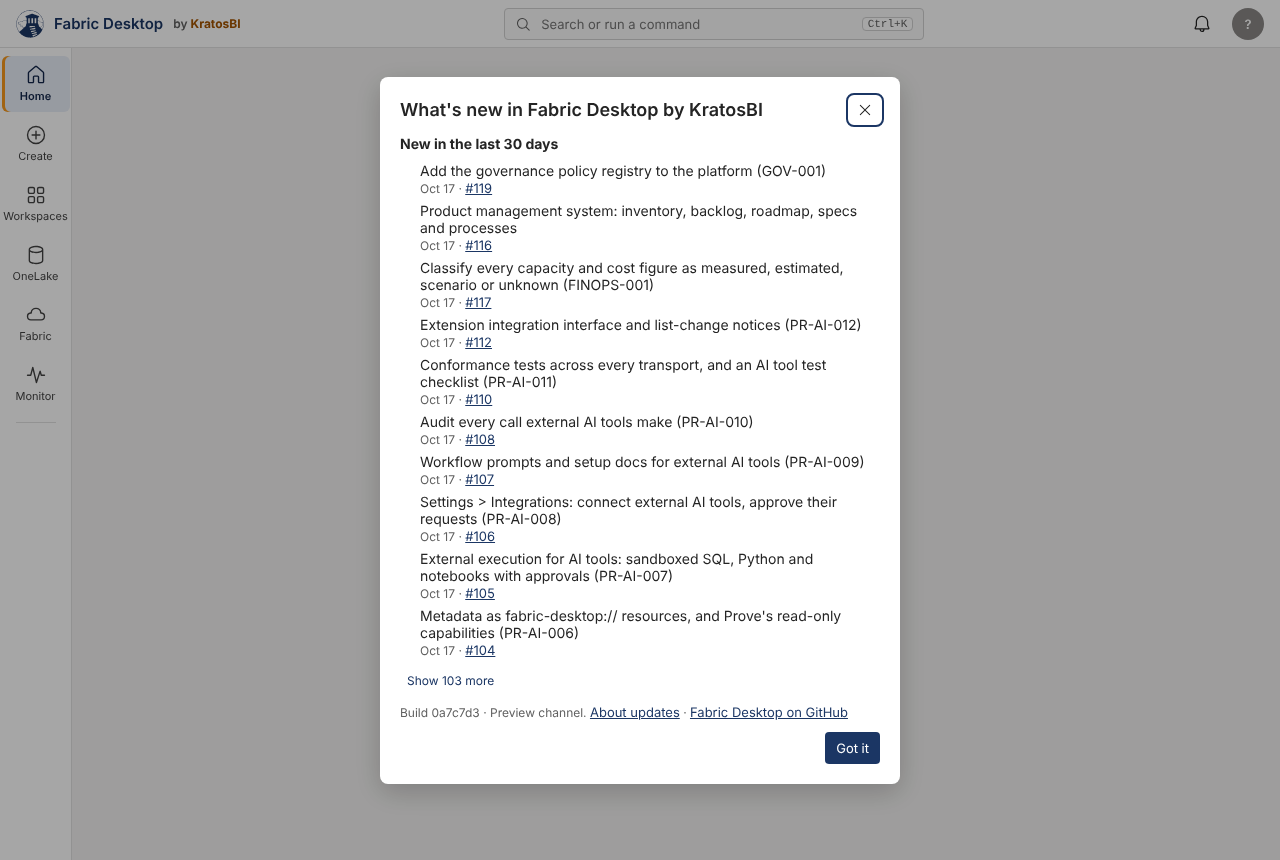
There are two channels:
- Stable (the default): builds that have been checked and released.
- Preview: every new build as soon as it's ready. For testers; things may change or break.
A channel change takes effect the next time Fabric Desktop by KratosBI starts. More detail, including where files are kept, is in install.md.
Preview features#
Features marked Preview work but haven't been tried on many Fabric tenants yet, so they may change. Today they are Run in Fabric, Schedules, Side by side, Prove this notebook, New notebook from a template, Cost, Capacity status, Measured usage import, OneLake shortcuts, OneLake access, Table history and restore, Table health, Semantic model, Tests, the Estate X-ray, Item preview, Workloads and Source control. To hide them, turn off Settings > Preview features. Promote, Sync keys, the variable library, quarantine Replay and the risk check before a run are also in preview but are core steps, so they always show, with their Preview tag.
The documentation home says what is tested and what isn't.
Report a problem#
Account menu or Settings > Report a problem. Describe what happened; Fabric Desktop by KratosBI adds its build, channel, the engine's Python version, your tenant id, the page you're on and the recent errors from Activity (the bell). It never adds your data, file contents or passwords, and you can read everything it adds before you send.
Send copies the report and opens your organization's support contact if it has one, or a new GitHub issue where you paste it. Copy only just copies it.
Ideas and feature requests go to the ideas forum instead: see Submitting ideas.
For IT admins#
Setting Fabric Desktop by KratosBI up for an organization, so nobody has to type an app ID: see Configure Azure and Fabric and Rolling out to your organization. For teams sharing projects and environments, see Working across teams.
Audit trail#
Every time someone runs or changes something in the app (a notebook cell, a SQL query, a metadata run, a publish, a promote, a schedule, a shortcut, a vacuum, a setting), the engine adds a line to %LOCALAPPDATA%\FabricDesktop\audit\audit-YYYY-MM.jsonl. On a server, the headless agent writes to audit\ in its home folder: one line when a run is queued (agent_enqueue) and one when each job finishes or fails (agent_job, with the tables, rows written and error). Reading, listing, previewing and waiting for results aren't recorded.
Each line says:
| Field | What it holds |
|---|---|
at, seconds |
When it started (UTC) and how long it took |
action, outcome |
What was done (meta_promote, run_sql, xray_vacuum ...) and ok or error, with the error text |
who, tenant |
The account signed in to the app, and its tenant |
host, os_user, app, version, compute |
The PC and Windows account, desktop or agent, the engine version, and where it ran |
target |
What it was done to: workspace, lakehouse, environment, entity, notebook name, ids |
prev, hash |
A SHA-256 chain linking each line to the one before. The app, scheduled runs and the agent take turns writing (through audit\.lock), so they never break the chain by writing at the same moment |
Code, SQL text, cell contents and data are never recorded; they show as (given). Tokens, keys and passwords are taken out of errors.
To read it, or to check that no line was changed or removed since it was written:
fabric-desktop audit --limit 20                      # the newest 20 lines
fabric-desktop audit --action meta_promote           # only promotes
fabric-desktop audit --verify                        # exit code 1 if the chain is broken
fabric-desktop audit --folder D:\agent\audit --verify # an agent's trail
The files are plain JSON lines, so a log shipper (Azure Monitor agent, Splunk, Fluent Bit) can collect them. The trail is evidence, not a lock: someone who controls the PC can delete the whole folder, which --verify can't see. If that matters for you, ship the files to a store the PC can't change.
Need a hand?
Find a fix in troubleshooting, or share a reproducible issue with the community.
Get support ↗Improve this guide on GitHub ↗